How to Manage Your Bookings
A walkthrough of your bookings dashboard — viewing, confirming, rescheduling, and cancelling appointments.
Transcript
Once bookings start coming in, here's how to stay on top of them.
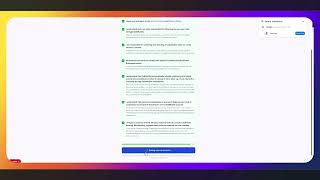
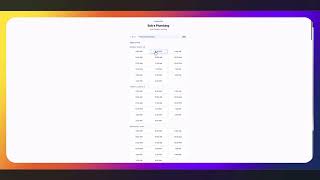
Your Bookings view shows everything coming up — who booked, what service, when, and the deposit they paid. All in one place. No spreadsheet, no sticky notes.
Click any booking to see the full detail — the customer's name, contact info, the service they selected, the time slot, and the deposit amount. Everything you need before you show up to the job.
From here you can confirm the booking, reschedule it if something comes up, or cancel it if needed. If you cancel, GrabMySlot handles the deposit — you set the refund rules when you build your booking page, so there's no awkward conversation with the customer about money.
You can always view your bookings in your own calendar if you prefer to see your week at a glance. Either way, your Google or Outlook calendar stays synced automatically — so your bookings show up wherever you already manage your schedule.
Every time a booking is confirmed, your customer gets an automatic confirmation and receipt. No followup needed from you. They know the time. They know the deposit was received, and they know you're coming.
That's how bookings work. Simple to track, nothing falls through the cracks.
Ready to get started?
Set up your booking page in under 10 minutes.