How to Use a Microsoft Work or School Account
If you see an admin approval screen when signing in with Microsoft, here's what it means and how to complete the one-time setup in under a minute.
Transcript
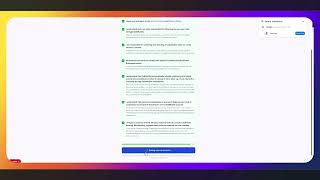
If you're signing in with a Microsoft work or school account, you may see this screen first. Here's what it means and how to get past it.
This is a standard Microsoft security requirement. The first time anyone on your Microsoft account tries to access GrabMySlot, an admin has to grant permission. This is a one time step — once it's done, everyone on your account can sign in without going through this again.
Click the link that says "Have an admin account? Sign in with that account" and sign in with your admin credentials.
You'll land on the consent screen. Make sure you check the box that says "Consent on behalf of your organization" — that's the setting that grants access for all users on your account, so nobody else has to go through this step.
Click Accept and you'll go straight to your GrabMySlot dashboard. You're in.
If you're not the admin on your Microsoft account, forward this video to whoever manages your Microsoft 365 account and have them complete this step for you. After this simple step, anyone you add will have no-hassle access.
Ready to get started?
Set up your booking page in under 10 minutes.