Set Up Your Booking Page
A step-by-step walkthrough of creating your booking page — jobs, pricing, scheduling mode, cancellation policy, and your shareable link.
Transcript
Your booking page is how customers schedule with you and pay upfront. Here's how to set one up.
From your dashboard, create a new booking page. You can have more than one — useful if you offer different types of work and want to keep them separate.
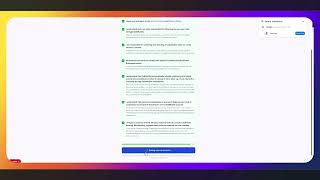
First, give your page a name. Your Company Name works fine. Then choose how you want to charge customers upfront — either a deposit or a trip charge. A deposit gets applied toward the total bill when the job is done. A trip charge is a flat fee that doesn't come off the final invoice — it just covers you for showing up. This setting applies to all the jobs on this page, so pick whichever fits how you work. You can add as many services as you need.
Then set your cancellation policy. This is the window you give customers to cancel before their appointment. Pick the option that matches how you want to run your business — the larger the window, the more protected your schedule is.
Next, set up your jobs. You can add up to four. For each one, give it a name, set how long it takes, and enter the amount — that's the deposit or trip charge the customer pays when they book. Keep the names simple and clear — your customer is going to read these and pick one.
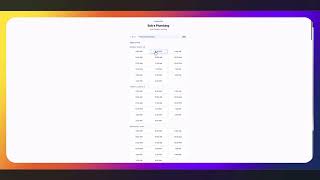
Now choose your scheduling type. Appointment mode lets you set the earliest and latest time a customer can book in a day. It's straightforward — you're open from this time to that time, and GrabMySlot fills in the available slots based on your job durations.
Window mode gives you more structure. You define a morning window and an afternoon window — for example, eight to noon and one to five. Customers can only book within those windows. This is useful if you want a guaranteed midday break or you're running jobs in two shifts.
Either way, you set a buffer between appointments — anywhere from no buffer up to sixty minutes. The buffer covers your travel time between jobs and automatically calculates how many bookings fit in your day. Set it honestly — it protects you from being overbooked.
Save your page and you'll get your booking link. Share it anywhere — your website, a text to a new customer, your Google Business profile. Anyone who clicks it sees your services, picks a time, and pays upfront.
That's your booking page. Takes about five minutes and it works for you around the clock.
Ready to get started?
Set up your booking page in under 10 minutes.